A Production-Ready Docker Host From Scratch, Restore-Tested
A fresh Debian 13 server, turned into a Docker host you can run in production, with backups we restore before we trust them.
A fresh server is online in under a minute. Within the hour, bots are trying to log in.
In this episode we take a new Debian 13 server and turn it into a Docker host you can run in production:
- SSH keys only, no root login
- a firewall, and a fix for the Docker trap that walks right past it
- security updates that install themselves
- Traefik with automatic TLS
- nightly encrypted backups, restored before we trust them
Most later episodes build on this base. Every file is in the repo, MIT licensed: quietsysadmin/stacks, base folder. The commands below follow the video's chapters. If they ever differ from the repo's README, the repo wins.
What we're building
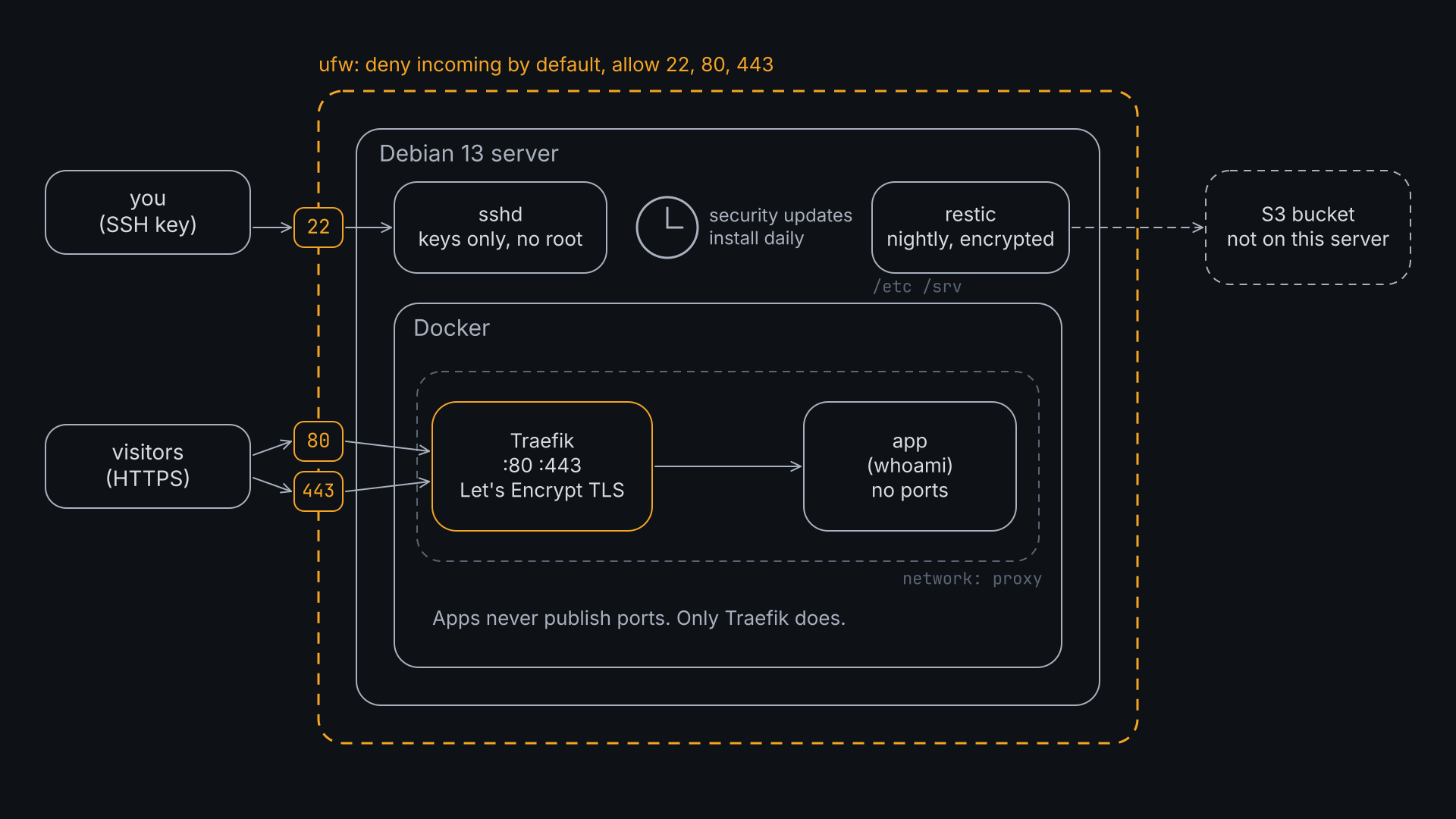
One Debian 13 server. You log in over SSH, with a key, as a normal user. ufw allows three ports: 22, 80 and 443. Inside, Docker. Only Traefik faces the internet: it takes 80 and 443, gets certificates from Let's Encrypt, and passes each request to the right app. The apps publish no ports of their own. Every night, restic sends an encrypted backup to S3-compatible storage somewhere else.
1. A user, and SSH keys only (1:35)
As root, on the fresh server:
adduser ops
usermod -aG sudo ops
install -d -m 700 -o ops -g ops /home/ops/.ssh
install -m 600 -o ops -g ops /root/.ssh/authorized_keys \
  /home/ops/.ssh/authorized_keys

cat > /etc/ssh/sshd_config.d/10-hardening.conf <<'EOF'
PermitRootLogin no
PasswordAuthentication no
KbdInteractiveAuthentication no
EOF
sshd -t && systemctl reload ssh
Keep the root session open. From your laptop, in a new terminal:
ssh [email protected]      # gets in
ssh [email protected]     # Permission denied (publickey)
Only then close the root session. sshd keeps the first value it reads, so the file name starts with 10- to sort first.
2. Firewall: deny by default (2:42)
As ops from here on.
sudo apt update && sudo apt install -y ufw
sudo ufw default deny incoming
sudo ufw default allow outgoing
sudo ufw allow OpenSSH
sudo ufw allow 80,443/tcp
sudo ufw enable
sudo ufw status verbose
Allow SSH before ufw enable. The other way round, on a remote server, locks you out.
3. Security updates that install themselves (3:19)
sudo apt install -y unattended-upgrades
sudo dpkg-reconfigure -f noninteractive -plow unattended-upgrades
cat /etc/apt/apt.conf.d/20auto-upgrades
sudo unattended-upgrade --dry-run --debug 2>&1 | tail -5
It doesn't reboot. New kernels wait for a reboot: see check six at the end.
4. Docker, from Docker's own repository (3:51)
sudo install -m 0755 -d /etc/apt/keyrings
sudo curl -fsSL https://download.docker.com/linux/debian/gpg \
  -o /etc/apt/keyrings/docker.asc
sudo tee /etc/apt/sources.list.d/docker.sources <<EOF
Types: deb
URIs: https://download.docker.com/linux/debian
Suites: $(. /etc/os-release && echo "$VERSION_CODENAME")
Components: stable
Architectures: $(dpkg --print-architecture)
Signed-By: /etc/apt/keyrings/docker.asc
EOF
sudo apt update
sudo apt install -y docker-ce docker-ce-cli containerd.io \
  docker-buildx-plugin docker-compose-plugin
sudo usermod -aG docker ops     # log out and back in
docker version
Anyone in the docker group is effectively root on this machine. On a single-admin server, that's a trade-off we accept. On a shared one, it isn't.
5. The trap: Docker walks past ufw (4:59)
docker run -d --name trap -p 8080:80 nginx:alpine
# from your laptop:
nmap -Pn -p 8080,8081 203.0.113.10   # 8080 open (Docker), 8081 filtered (ufw)
docker rm -f trap
Docker writes its own firewall rules for published ports, and traffic to them never passes through ufw's rules. Your firewall says no, and Docker lets the traffic in anyway.
The rule on this server: apps never publish ports. Only Traefik does, on 80 and 443. Apps join the proxy network and are reachable only through Traefik. Need a port for debugging? Bind it to localhost (127.0.0.1:8080:80) and use an SSH tunnel.
6. Traefik with automatic TLS (6:01)
Point a DNS record for whoami.example.com at the server first. If your DNS provider can proxy traffic (Cloudflare's orange cloud), turn that off for this record.
sudo apt install -y git
git clone https://github.com/quietsysadmin/stacks.git ~/stacks

sudo install -d -o ops -g ops /srv/traefik
cp ~/stacks/base/traefik/compose.yaml ~/stacks/base/traefik/.env.example \
  /srv/traefik/
cd /srv/traefik
cp .env.example .env && nano .env    # ACME_EMAIL and DOMAIN, not secrets
docker network create proxy
docker compose up -d
docker compose logs -f traefik       # watch the certificate get issued
curl -sI https://whoami.example.com | head -1
Let's Encrypt checks you own the domain by connecting to the server on port 80 and asking for a token Traefik serves. That's the HTTP challenge: no API keys, one certificate per hostname. For wildcard certificates you need the DNS challenge.
Rehearse first: uncomment ACME_CA_SERVER in .env to use Let's Encrypt staging. Production allows 5 certificates a week for the same hostname.
One honest note: Traefik reads the Docker socket, and access to that socket is root on the host. Mounting it read-only helps less than it sounds. A socket proxy is the proper fix, and it gets its own episode.
7. Backups with restic, off the server (7:58)
Any S3-compatible bucket works (Google Cloud Storage, Backblaze B2, Cloudflare R2), as long as it isn't on this server. Create a key that works on that one bucket only.
sudo apt install -y restic
sudo install -m 600 ~/stacks/base/restic/restic.env.example /etc/restic.env
sudoedit /etc/restic.env
sudo sh -c 'umask 077; head -c 32 /dev/urandom | base64 > /etc/restic.password'
sudo ls -l /etc/restic.env /etc/restic.password   # -rw------- root root, both
sudo bash -c 'set -a; . /etc/restic.env; restic init'
Copy /etc/restic.password to your password manager now. Lose it, and the backups are noise.
The key on this server can delete backups too, so whoever takes over the server can wipe them. Turn on versioning, soft delete or object lock on the bucket if your storage has it.
Nightly, on a timer (9:13)
sudo cp ~/stacks/base/restic/restic-backup.service \
  ~/stacks/base/restic/restic-backup.timer /etc/systemd/system/
sudo systemctl daemon-reload
sudo systemctl enable --now restic-backup.timer
sudo systemctl start restic-backup.service      # first backup now, not tonight
sudo bash -c 'set -a; . /etc/restic.env; restic snapshots'
Every night around 03:00 it backs up /etc (the configuration) and /srv (the apps and their data), then keeps 7 daily, 4 weekly and 6 monthly snapshots. If the server was off, it catches up at the next boot. Databases need a consistent dump first: each stack that has one adds it.
8. The restore test (9:52)
A backup you haven't restored isn't a backup. It's a hope.
sudo bash -c 'set -a; . /etc/restic.env; \
  restic restore latest --target /tmp/restore-test --include /srv/traefik'
sudo diff -r /srv/traefik /tmp/restore-test/srv/traefik && echo "restore matches"
sudo rm -rf /tmp/restore-test
Do it again every month. It takes a minute.
9. Before you trust it in production (10:20)
sudo ~/stacks/base/checks/verify.sh whoami.example.com
nmap -Pn 203.0.113.10     # from your laptop: 22, 80 and 443 only
verify.sh checks the running state, not the files you edited:
- SSH: root login and passwords are off.
- Ports: ufw opens 22, 80 and 443 only, and no container publishes past it.
- HTTPS: a valid certificate.
- Updates: unattended-upgrades is on.
- Backups: the last run worked within 26 hours, and
restic checkpasses. - Reboots: it warns when one is pending. Updates land on their own, but a new kernel waits for a reboot, so pick a maintenance window.
Next week
Local AI with Ollama and Open WebUI, private and hardened, on hardware you already own.
The narration in the video is an AI voice reading a script I wrote. The commands are real, and every one ran on a real server before it was recorded.